
Logitech MX Master 3S vs Surface Precision: Which Reigns?
Two pro-grade mice enter the ring — which one truly supercharges productivity, comfort, and control?
Spoiler: your hand deserves a throne. Quick overview comparing the Logitech MX Master 3S and Microsoft Surface Precision Mouse — two premium productivity mice. We summarize differences in ergonomics, tracking, buttons, connectivity, software, battery, and value to help you choose today.
Power User
A top-tier productivity mouse that prioritizes precision, customizable workflow, and whisper-quiet, high-speed scrolling. It’s ideal for power users who want excellent cross-computer flow and a comfortable, feature-rich ergonomic design.
Office Multitasking
A comfortable, well-built office mouse that emphasizes reliable multi-device use and smooth magnetic scrolling. It’s a strong choice for users who prioritize ergonomics and simple workflow switching, though its sensor and charging port feel a step behind the newest premium mice.
Logitech MX3S Mouse
Microsoft Surface Precision
Logitech MX3S Mouse
Microsoft Surface Precision
Logitech MX3S Mouse
Microsoft Surface Precision
Design & Ergonomics: Comfort, Build, and Controls
Shape & fit
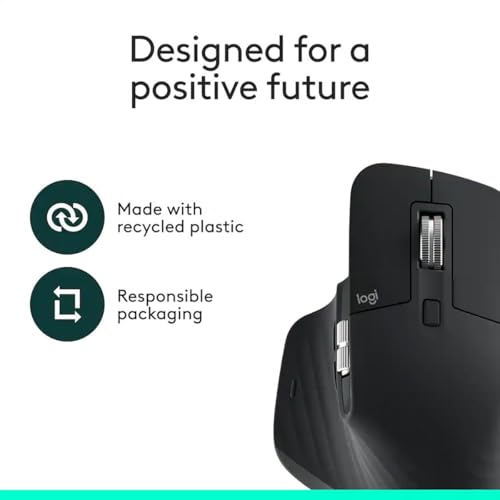
The MX Master 3S is a sculpted, right‑hand‑only design with a pronounced thumb rest and high arch that seats the palm. It forces a relaxed wrist angle and keeps fingers naturally positioned over primary buttons—ideal for long desktop sessions.

The Surface Precision takes a lower, subtler profile with gentle sculpting. It feels less “bulky” in the hand and aims for a middle ground between sculpted comfort and a compact footprint. Microsoft lists it as ambidextrous-friendly, but the thumb button cluster favors right‑hand use for fastest access.
Materials, weight & durability
Both mice are solidly built and feel premium in hand. Key points:
Controls & button layout
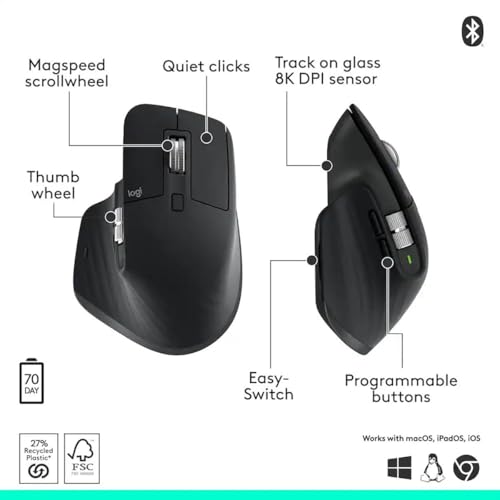
The MX Master 3S focuses on workflow controls: prominent gesture button under the thumb, a dedicated horizontal thumb wheel, standard scroll wheel with MagSpeed, and quiet left/right clicks. Layout is optimized for flow and one‑handed command.
The Surface Precision emphasizes a multi‑button thumb cluster: three thumb buttons plus a precision scroll wheel with magnetic (stepped or free‑spin) behavior. That cluster supports fast shortcuts and multi‑computer switching but requires a bit more thumb travel.
Quick comparison at a glance:
Performance: Tracking, Scrolling, and Button Functionality
Tracking & sensitivity
The MX Master 3S uses an 8000 DPI Darkfield sensor that tracks on virtually any surface — including glass (4 mm+). That high DPI plus Logitech’s low-latency handling makes pixel-level moves feel immediate and predictable for photo retouching, vector work, and tight UI nudges.

The Surface Precision uses Microsoft’s BlueTrack-style sensor (manufacturer DPI not published). It’s very accurate for spreadsheets, document work, and most design tasks on typical desks but can struggle on transparencies/glass and won’t match the MX’s top-end DPI for extreme magnification.
Scrolling systems
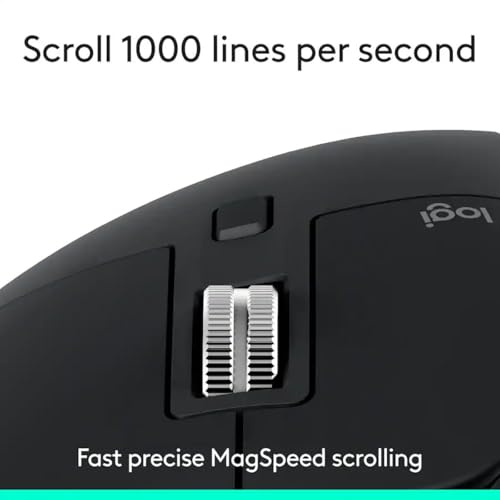
MX Master 3S: MagSpeed electromagnetic wheel
Surface Precision: magnetic wheel with selectable stepped or free-spin
Button responsiveness & customization
Practical note: both handle occasional gaming fine (MMO or civ-style), but neither replaces a gaming mouse for fast FPS—MX’s higher DPI and extra buttons give it the edge for precision-heavy creative work.
Feature Comparison Chart


Connectivity, Battery Life & Software Integration
Connection options & multi‑device switching
The MX Master 3S connects via Bluetooth or a USB receiver (Logi Bolt/Unifying — receiver sold separately) and can also operate while charging over USB‑C. It supports pairing with up to three devices and fast device switching; Logitech Flow lets you control multiple computers and even copy/paste or transfer files between Windows and macOS.

The Surface Precision pairs via Bluetooth or a wired USB cable (cable included) and uses a hardware switch to control up to three PCs. Microsoft’s workflow focuses on seamless cursor/keyboard switching (Smart Switch control) rather than cross‑computer file transfer.
Battery approach & real‑world longevity
Companion software, remapping & OS support
Quick take: MX Master 3S wins for modern ports (USB‑C), richer cross‑computer features and broader software customization. Surface Precision offers straightforward multi‑PC switching with long battery life and wired fallback for compatibility.
Price, Value, Use Cases & Practical Considerations
Street price & value on Amazon
At typical Amazon prices the MX Master 3S sits around $87 while the Surface Precision retails near $250. That makes the MX Master 3S a clear value pick for most buyers: similar or better modern features for roughly one‑third the price. The Surface only makes sense at full price if you highly value its Windows-centric integration or prefer its feel.
Warranty & support
Logitech’s Amazon listing doesn’t show a clear warranty line — check Logitech or the seller for region‑specific coverage (often 1–2 years). Microsoft lists a 1‑year limited hardware warranty for the Surface Precision. Both offer firmware updates and standard support channels; check Amazon seller/brand pages before purchasing.
Long‑term ownership considerations
Which mouse suits which user
Portability, travel & deals
Both are larger, desk‑oriented mice (not pocketable). Surface is slightly lighter and ambidextrous‑friendly; MX Master 3S is right‑handed and bulkier. Deep discounts or bundles (especially MX Master 3S under $100) shift recommendation heavily toward Logitech; buy Surface only on steep sale or if you need its Windows‑first fit.
Final Verdict: Which Reigns?
MX Master 3S is the clear overall winner for productivity: best ergonomics, MagSpeed ultra fast scrolling, cross platform support, and quiet clicks. Downsides are larger size and higher price.
Surface Precision Mouse is the better Windows native fit and often the best value on Amazon: solid build, tight Microsoft integration, and comfortable tracking at a lower price. Recommendation: choose MX Master 3S if you want top tier features and multi platform flexibility; choose Surface Precision if you prioritize Windows integration and value. Quick buying tip: monitor Amazon listings and favor Prime deals or bundles. Clear winner: MX Master 3S for demanding productivity; Surface Precision for Windows users seeking strong performance at a lower cost. Shop wisely.


I use both depending on device. Quick observations:
1) MX Master 3S — better multitasker (easy device switching). Great for big hands.
2) Surface — minimal fuss, good palm support.
3) Both are a step up from cheap mice; pick based on workflow.
Also, the MX has better app-specific button mapping imo. If you love shortcuts, it’s worth it.
P.S. the MX’s quiet clicks are not silent — but close. lol
Agree on mapping. I have app-specific profiles for Blender and Premiere — life-saver.
Quick question for those who’ve owned the MX for a while: Does the finish wear off? I worry about glossy bits getting shiny over months.
Also, how’s the thumb wheel durability? I adore it but want it to last.